💾
Capture Current Layout
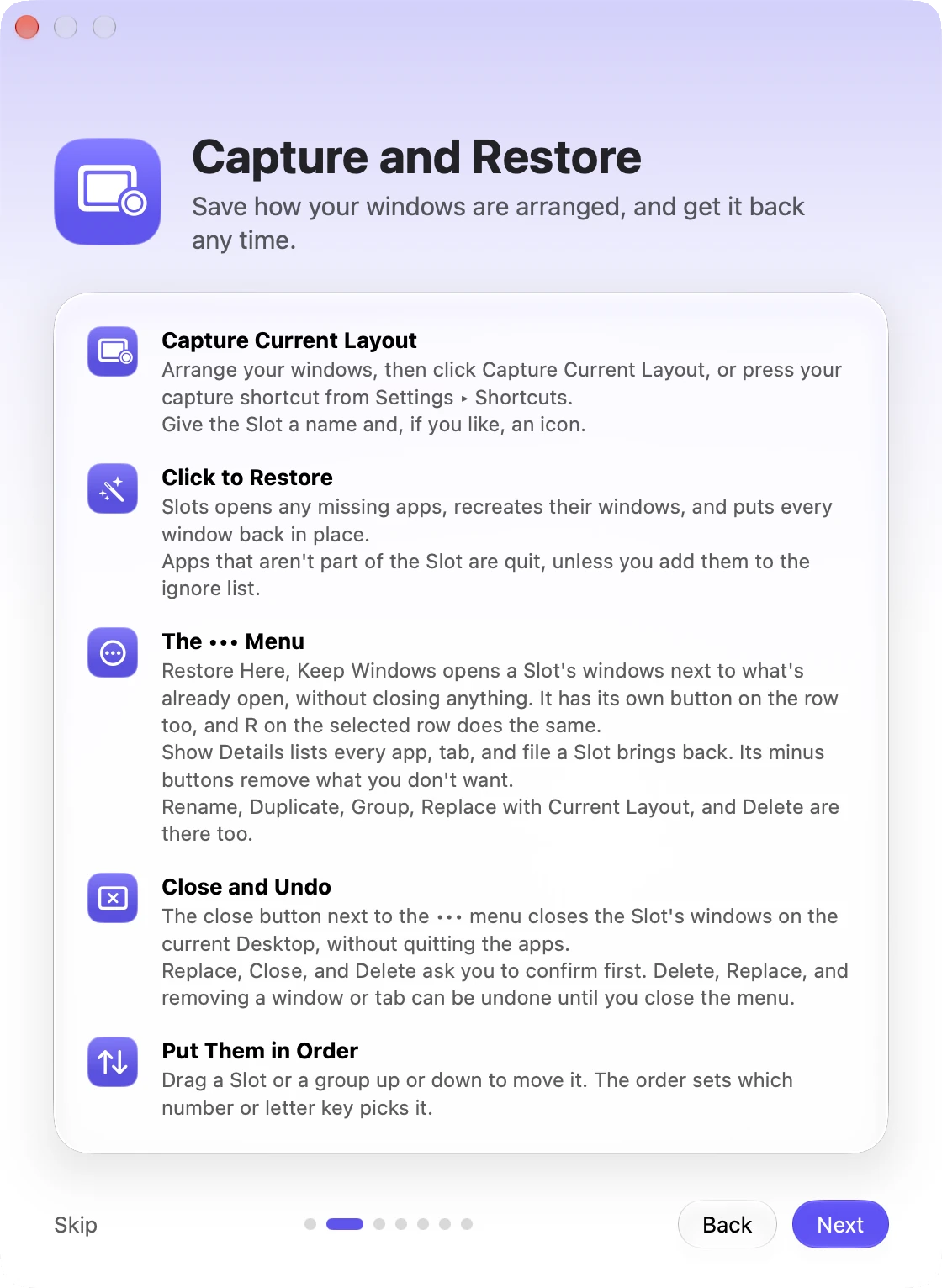
Save every open window (app, position, and size) as a named Slot with one click, or with your own keyboard shortcut from anywhere.
🔁
One-Click Restore
Select a Slot and Slots relaunches missing apps and repositions every window to match.
📄
Content-Aware Restore
Popular browsers, file managers, and developer tools reopen the same tabs, folders, and files, not just window positions.
👁️
Preview Before You Restore
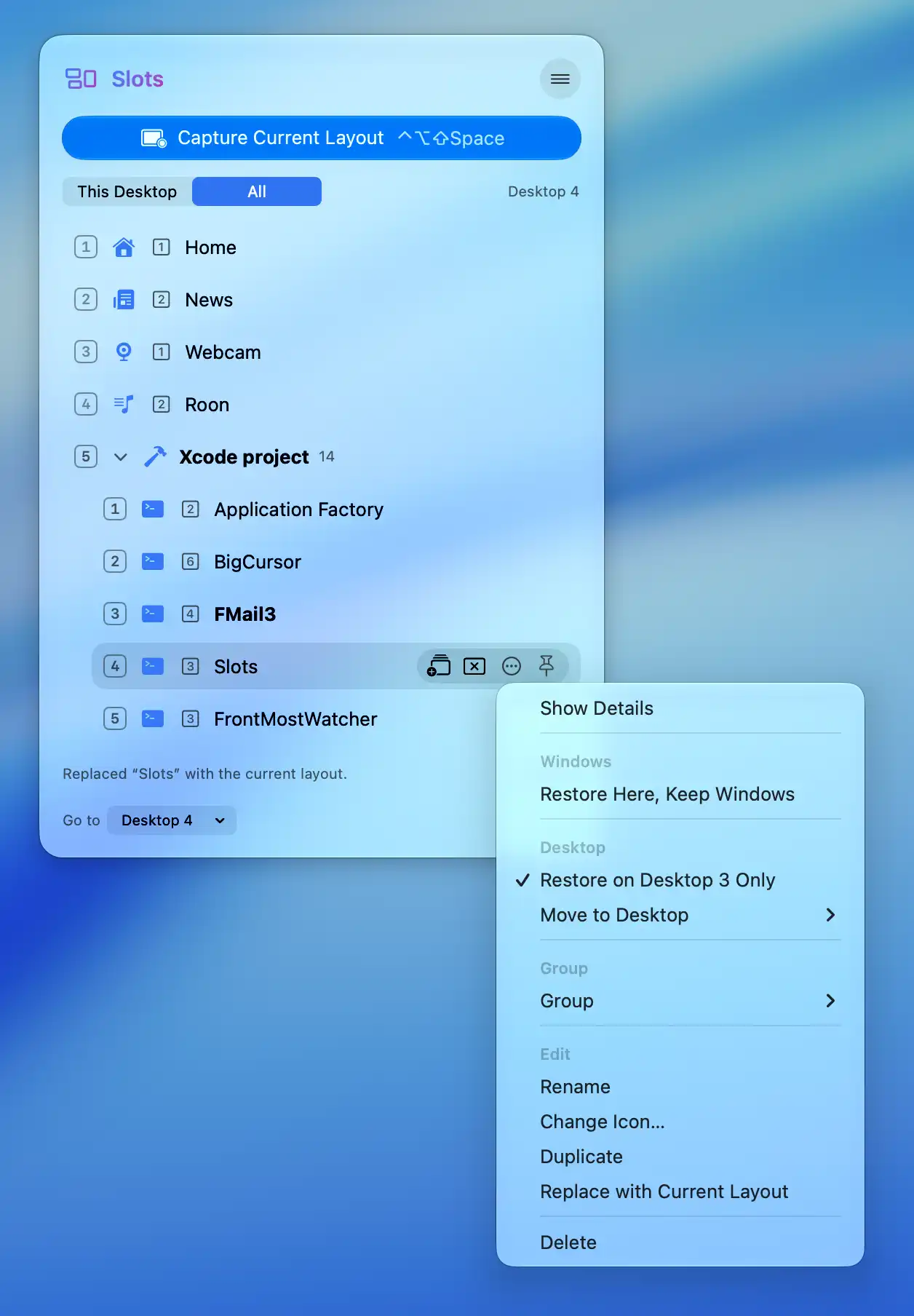
Choose Show Details in any Slot's ••• menu to see exactly which apps, tabs, and files it will bring back, and which Desktop it was captured on.
An orange warning marks folders, projects, and documents that no longer exist on disk.
Captured a window you don't want? Click the minus button next to it to remove it from the Slot.
Click a window's tab count to list its tabs, folders, or files, and remove single ones the same way.
If that Safari, Chrome, or Finder window is open, the tab closes there right away too, and Undo opens it again.
🖥️
Desktop-Aware Slots
Every new Slot belongs to the Desktop it was captured on. Selecting it switches to that Desktop and rebuilds only that one, keeping windows that already show the right tabs or folders.
A numbered badge in the list shows which Desktop each Slot belongs to, and the Slots for the Desktop you're on are shown in bold.
When the windows on screen match a Slot, its Desktop number is filled in with your accent colour, so you see at a glance which Slot is showing.
Choose Move to Desktop in a Slot's ••• menu to give it another Desktop: Slots closes its windows on the old one and rebuilds it on the new one.
Switch the list to This Desktop to see only the Slots for the Desktop you're on.
The Slots icon in the menu bar shows the number of the Desktop you're on, and the Go to pop-up menu at the bottom of the menu takes you straight to any other Desktop without restoring anything. It lists the Slots on each Desktop, and Option-1, Option-2 and so on switch from the keyboard.
When macOS is set to rearrange Desktops automatically, Slots offers to turn that off, so your Slots stay on the right Desktop.
↩️
Back to Previous Layout
Restored the wrong Slot? Slots takes a snapshot of the Desktop right before every restore, so one click on Back to Previous Layout rebuilds it the way it was.
➕
Restore Here, Keep Windows
Click the Restore Here button on a Slot's row, press R on the selected row, or choose Restore Here, Keep Windows in its ••• menu to open its windows on the Desktop you're on, right next to what's already there.
Nothing is closed, no apps are quit, and windows that already show the Slot's tabs or folders are simply moved into place.
⚠️
See What Didn't Come Back
When some windows can't be restored, click the message at the bottom of the menu to see exactly which ones: each app with its tabs, folders, project, or window title.
Click Retry to try again for just those windows, without closing anything that's already open.
✏️
Rename Slots
Give a saved Slot a new name at any time, right from the popover.
📑
Duplicate a Slot
Want a variant of a Slot, say without Safari? Choose Duplicate in its ••• menu, rename the copy, and remove what you don't need in Show Details. No need to capture again.
🏷️
Slot Icons
Pick from more than 300 SF Symbols, in 12 categories and with search, to give each Slot a distinctive icon next to its name, shown in your accent colour.
Click the icon, or choose Change Icon… in the ••• menu, to change it.
Rest the pointer on the icon to see the Slot's window layout: every screen it uses, with each window and the app it belongs to.
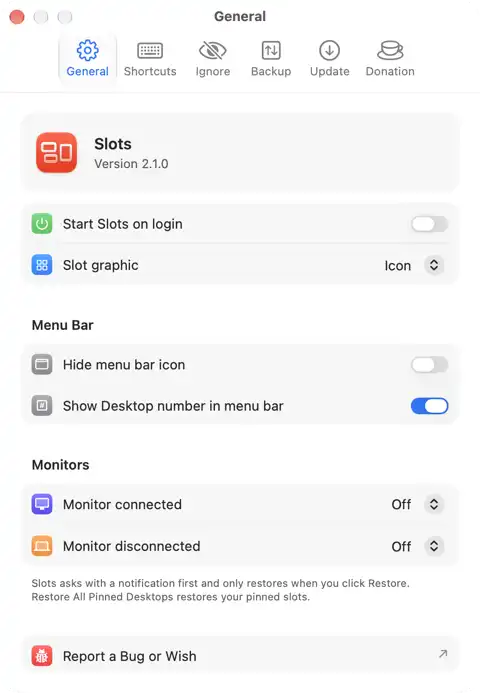
Prefer a tiny map of the windows over an icon? Choose Window Layout as the Slot graphic in Settings → General.
♻️
Replace a Slot
Recapture your current window layout into an existing Slot. No need to delete and start over when your setup changes slightly.
Replace, Close, and Delete all ask for a quick confirm click before they act, and Delete, Replace, and removing a window or tab can be undone with one click until you close the menu.
✖️
Close a Slot's Windows
Done with a task? Click the close button on a Slot's row to close that Slot's windows on the current Desktop. The apps keep running, so their windows on other Desktops stay open.
↕️
Drag to Reorder
Drag a Slot up or down to reorder the list, and a line shows where it will land. Handy, since restore shortcuts follow that same order.
🗂️
Slot Groups
Keep a long list tidy by putting Slots in groups, for example one for all your development setups.
A group is a single row that unfolds its Slots right below it, and only one group is open at a time.
Choose Group ▸ New Group… in a Slot's ••• menu to start one, and Ungroup in the group's ••• menu to undo it without losing a Slot.
With the keyboard, open Slots with your shortcut, press the group's number or letter to open it, then a Slot's number or letter to restore it. Escape closes the group again.
🪄
Shortcuts, Siri, and Focus
Restore Slot, Restore All Pinned Desktops, and Capture Slot are actions in the Shortcuts app, so you can build them into your own automations, or just say "Restore Home in Slots".
Add a Slots filter to a Focus and turning on that Focus restores the Slot you picked.
⌨️
Global Shortcut
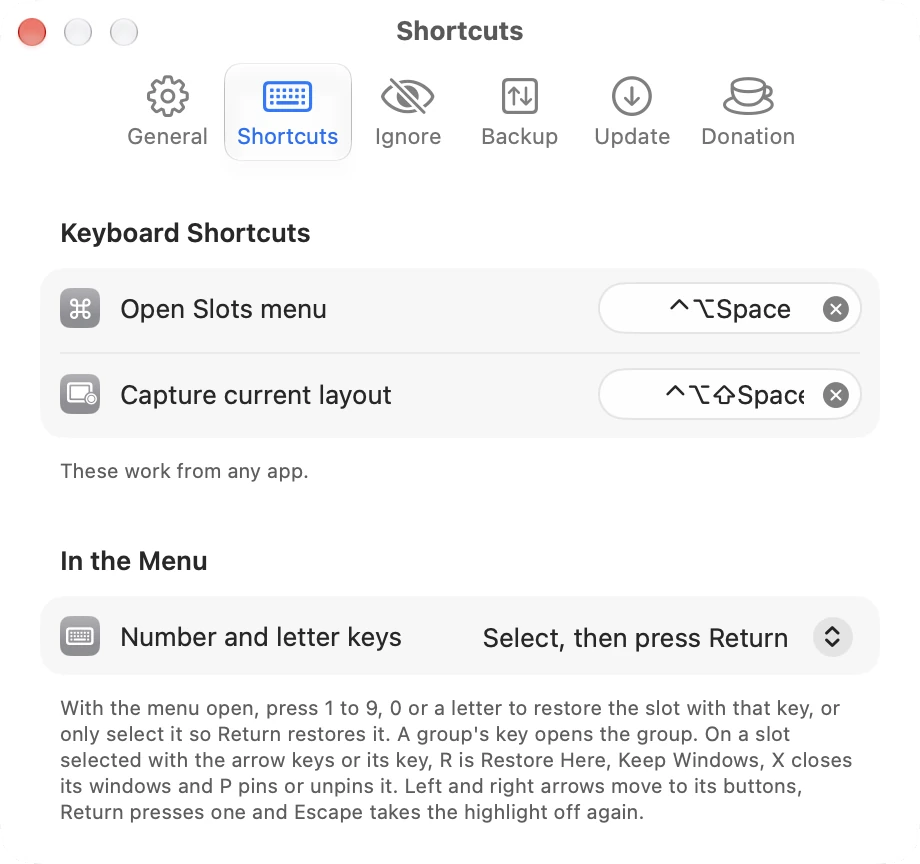
Open the Slots menu from anywhere with your own keyboard shortcut, set in Settings → Shortcuts, then just press 1–9 or 0 to instantly restore that Slot.
Further down the list, Slots get the letters A to Z, shown next to each name.
Rather look before you restore? Settings → Shortcuts can make the keys only select the Slot, and Return restores it.
Or just start typing a Slot's name to select it, then press Return. Choose Type a slot's name to select it in Settings → Shortcuts.
Selected a Slot with the arrow keys? Press R for Restore Here, Keep Windows, X to close its windows, or P to pin or unpin it. Or use the left and right arrows to move to the buttons on its row, and press Return. Escape takes the highlight off again.
Set a second shortcut to capture a new Slot from anywhere: Slots opens and starts capturing right away.
🫥
Hide the Menu Bar Icon
Once you've set a shortcut to open Slots in Settings → Shortcuts, you can hide the menu bar icon entirely in Settings → General.
Open Slots with the shortcut or by launching it again from Finder.
🔑
Restore All Pinned Desktops
Pin one Slot per Desktop. Choose Restore All Pinned Desktops in the ≡ menu and Slots restores the pinned Slot of each Desktop in turn, then returns you to the one you started on.
Pinned Slots are also restored whenever Slots starts, and Slots itself can launch at login.
🔌
Monitor Triggers
Plug in your monitor at your desk and Slots offers to bring back your desk layout. Unplug it and it offers your laptop layout.
In Settings → General, choose a Slot or Restore All Pinned Desktops for Monitor connected and Monitor disconnected.
Slots asks with a notification first and only restores when you click Restore.
🚫
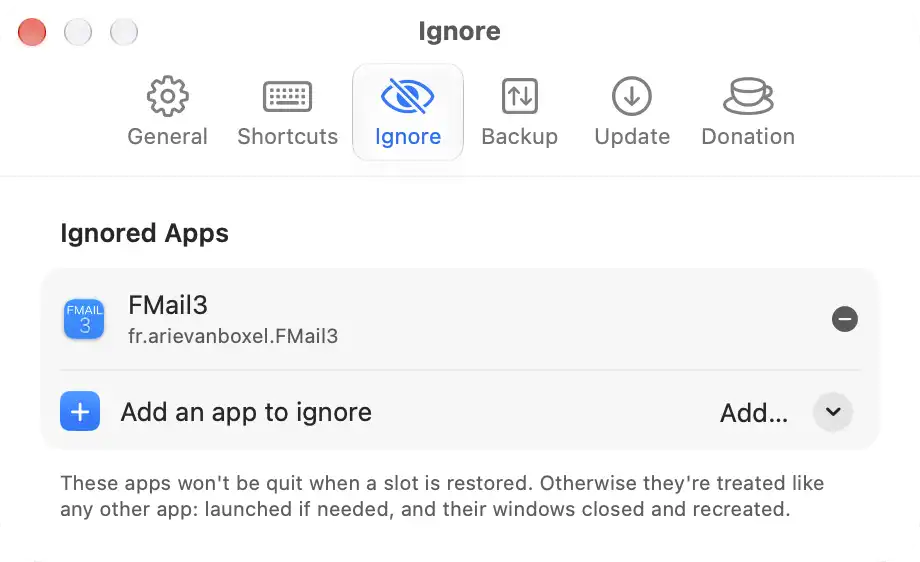
Ignore List
Mark apps to always leave running. Restoring a Slot never launches or quits them, only repositions them if already open.
📤
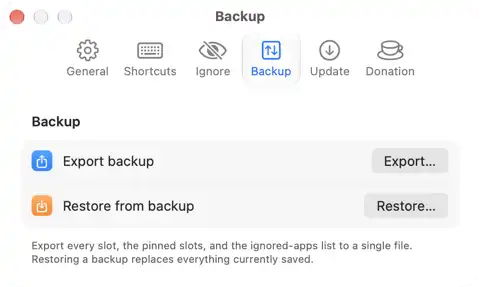
Backup & Restore
Export every Slot, the pinned Slots, and your ignore list to a single file, and restore it later with a confirmation before anything's overwritten.
⚡
Native Swift, Not Electron
Built with Swift 6 and SwiftUI, with the Liquid Glass look of macOS Tahoe and later: lightweight and fast, with none of the overhead of a bundled browser runtime.
🧭
Guided Introduction
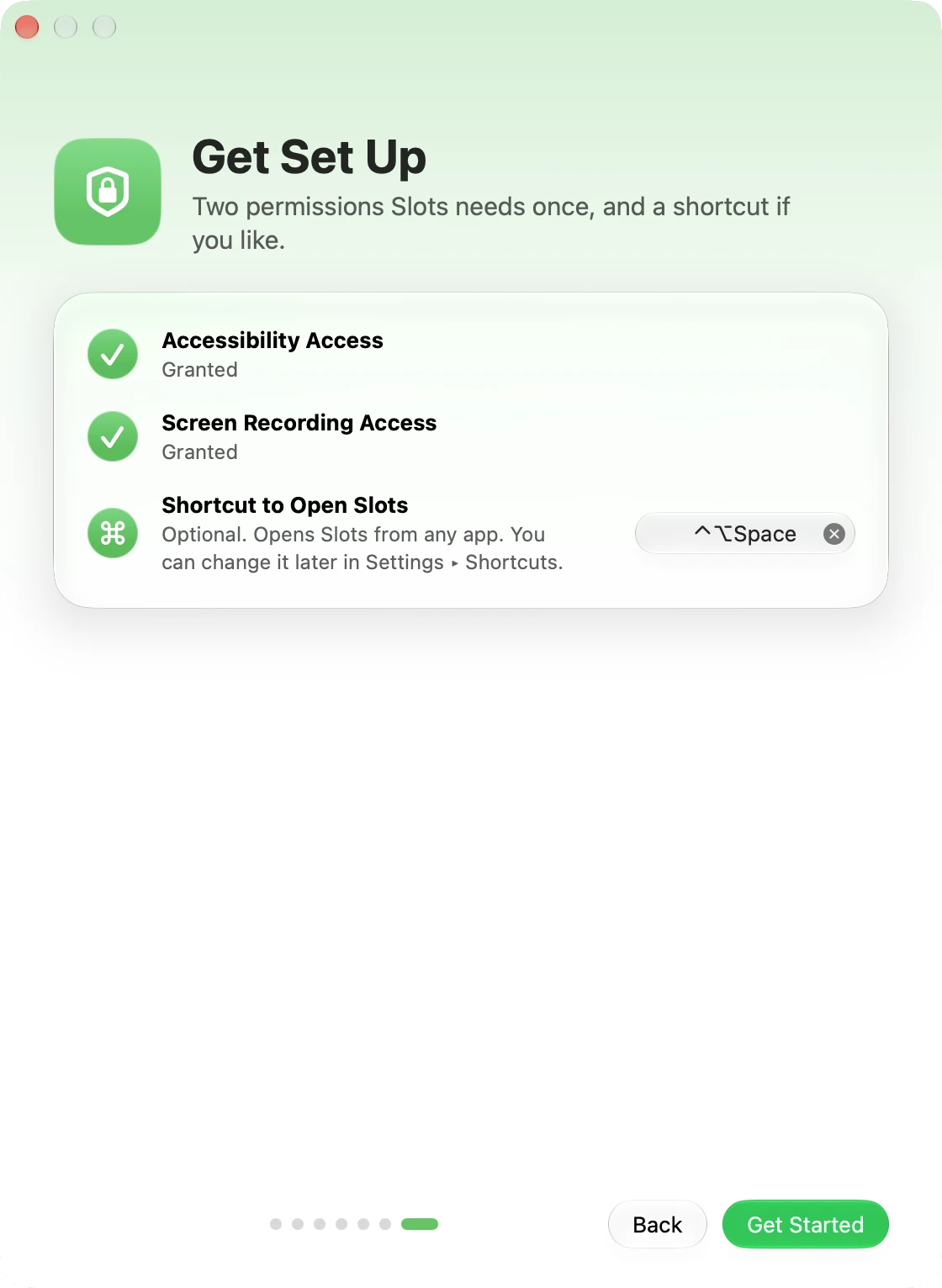
A short tour on first launch walks you through capturing, restoring, Desktops, tabs and documents, and shortcuts.
Its last page shows Accessibility and Screen Recording access as granted or not at a glance.
Open it again any time from ≡ ▸ Show Introduction.