About
Is this an Electron app?
No. Slots is written natively in Swift 6 and SwiftUI, so it's lightweight and fast instead of bundling a browser runtime.
Does restoring a Slot bring back my tabs and documents too?
For a range of popular browsers (Safari, Chrome, Brave, Edge, Vivaldi, and Firefox), file managers, and developer tools such as Xcode, Terminal, and Visual Studio Code, yes.
Slots reopens the same tabs, folders, and files, not just window positions. VS Code windows come back with their folder or workspace, and VS Code reopens its own open files.
Other scriptable apps fall back to reopening their documents via AppleScript, or plain window positioning if that isn't supported.
Tips
Can I add icons to my Slots?
Yes. Choose Change Icon… in a Slot's ••• menu, or click a Slot's icon in the list, to pick from more than 300 SF Symbols in 12 categories, or type a word like "work" or "travel" to search them. 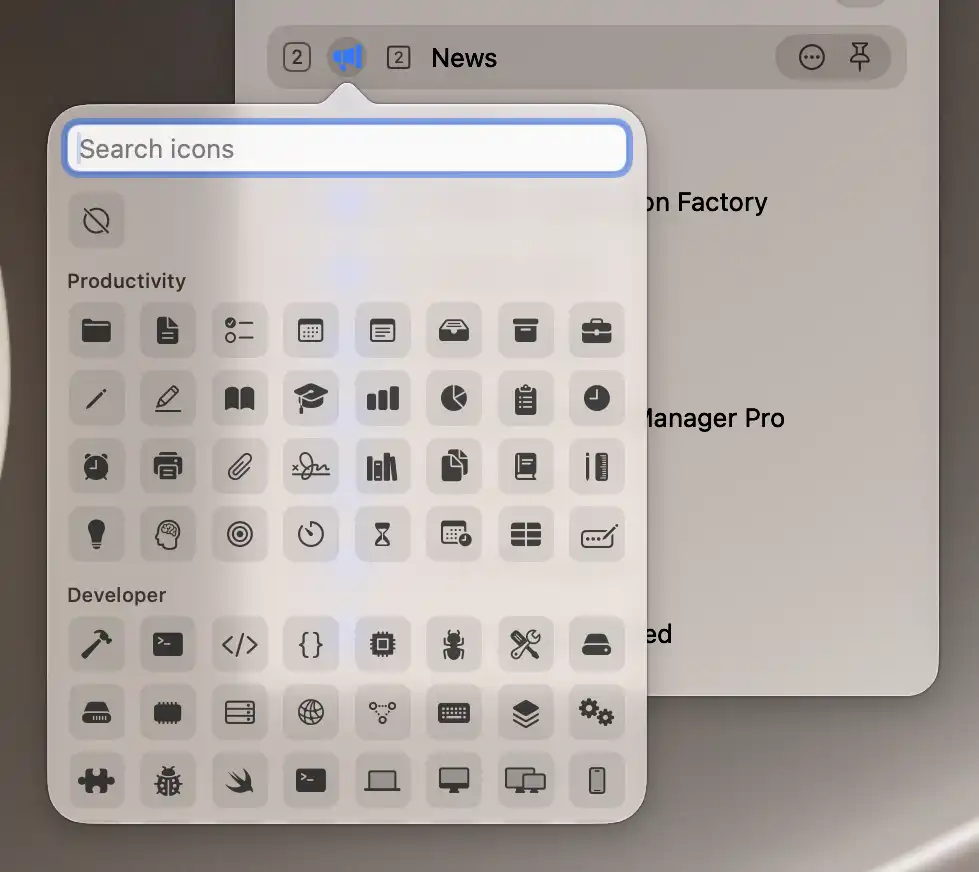
You can also pick one while naming a new Slot. No need to know a symbol's name yourself.
Do Slots capture windows from all my desktop Spaces?
No. A Slot only captures windows on the Desktop you're currently on. This is handy: keep a separate Slot per Desktop (e.g. one for a coding setup, another for email and chat).
New Slots have "Restore on Desktop N Only" turned on, so selecting one switches to that Desktop first and rebuilds only that one, leaving your other Desktops alone.
Windows that already show the right tabs or folders stay open; other apps' windows on that Desktop are closed, but the apps keep running.
I updated from an earlier version. Why do my Slots now show a 1?
Slots saved before Desktops were recorded are assigned to Desktop 1, with "Restore on Desktop 1 Only" turned on. Selecting one now rebuilds only Desktop 1 and leaves your other apps running.
To reset your whole Mac as before, turn the option off in the Slot's ••• menu.
How does Slots switch to a Slot's Desktop?
It uses your Mission Control keyboard shortcuts. If "Switch to Desktop N" is turned on in System Settings → Keyboard → Keyboard Shortcuts → Mission Control, Slots jumps straight there.
Otherwise it steps there with Control-Left/Right Arrow, passing every Desktop in between.
When a Desktop has no shortcut yet, for example right after you add one, Slots asks whether to turn it on for you.
Why does Slots ask me to turn off automatic Desktop rearranging?
With "Automatically rearrange Spaces based on most recent use" turned on in System Settings → Desktop & Dock → Mission Control, macOS keeps moving your Desktops around, so the Desktop a Slot belongs to can change places and the Slot ends up on the wrong one.
Slots offers to turn it off for you. The Dock restarts for a moment, and your Desktops and windows stay where they are.
If you chose Not Now, the same button is in Settings → General → Desktops.
Can I move a Slot to another Desktop?
Yes. Choose Move to Desktop in the Slot's ••• menu and pick a Desktop. Slots closes the Slot's windows on its old Desktop, switches to the new one and rebuilds the Slot there.
Documents that can be open in only one window, such as an Xcode project, move along too. "Restore on Desktop N Only" is turned on for the new Desktop.
How do I close a Slot's windows without quitting the apps?
Click the close button on the Slot's row. Slots closes the windows of that Slot's apps on the current Desktop, after a quick confirm click.
From the keyboard, select the Slot with the arrow keys and press X. That closes them right away, without the confirm click.
The apps keep running, so their windows on your other Desktops stay open, and other apps aren't touched.
For a Slot with "Restore on Desktop N Only" turned on, Slots switches to that Desktop first.
Why did a window stay open after restoring or closing a Slot?
Some apps ask before a window closes. When it's a plain confirmation, such as Terminal asking whether to terminate the processes running in a window, Slots answers it for you and the window closes.
When an app asks whether to save changes to a document, Slots leaves the window open and doesn't answer, so you never lose unsaved work. Save or discard the changes yourself, then restore again.
A Slot captured a window I don't want. Do I have to capture it again?
No. Choose Show Details in the Slot's ••• menu, click the minus button next to the window, then click Remove to confirm.
To remove just one tab, folder, or file, click the window's tab count (for example "3 tabs") to list them, and use the minus button next to that one.
The last window of a Slot, and the last tab of a window, can't be removed; remove the window or delete the Slot instead.
What happens when I restore a Slot without my external monitor?
Windows that were on a display that isn't connected move onto the main display instead of ending up off-screen.
They keep their share of the screen, so a window that filled the left half of the monitor fills the left half of your laptop screen. Reconnect the monitor and restore again to put them back.
If you've rearranged your displays, windows follow their display to its new position.
Can Slots restore a layout when I connect or disconnect my monitor?
Yes. In Settings → General → Monitors, choose what to restore for Monitor connected and for Monitor disconnected: a Slot, or Restore All Pinned Desktops.
When the monitor changes, Slots shows a notification, and nothing is closed until you click its Restore button (hover over the notification to see it).
Afterwards, Back to Previous Layout in the Slots menu undoes the restore.
Unplugging one of several monitors doesn't count, and neither does a monitor that briefly drops out while your Mac sleeps.
I restored the wrong Slot. Can I go back?
Yes. Right before a restore from the menu, Slots takes a snapshot of the Desktop it's about to rebuild.
Open the Slots menu and click Back to Previous Layout at the bottom, and that Desktop is rebuilt the way it was, with the same apps, windows, tabs, and folders.
After Restore All Pinned Desktops, every pinned Desktop comes back. The button stays until your next restore.
For a Slot that isn't tied to a Desktop, which resets the whole Mac, only the Desktop you were on comes back.
My Slot list is long. Can I see only the Slots for this Desktop?
Yes. Once a Slot is kept to a Desktop, a This Desktop / All switch appears above the list. This Desktop shows the Slots for the Desktop you're on, plus Slots that aren't kept to any Desktop.
The number keys follow the shorter list, and Slots remembers your choice.
Can I put my Slots in groups?
Yes. Choose Group ▸ New Group… in a Slot's ••• menu, give the group a name and, if you like, an icon. Add more Slots with Group in their ••• menu, or take one out with Remove from Group.
A group shows as one row: click it to unfold its Slots, and click it again to fold them. Only one group is open at a time.
Groups work with the keyboard too. Open Slots with your global shortcut, press the group's number or letter to open it, then press a Slot's number or letter to restore it.
Browsing the list with the arrow keys, press Right Arrow on a group to open it and Left Arrow to close it. Press Escape to close the group, and again to close the menu.
A Slot you capture while a group is open goes straight into that group. To remove a group but keep its Slots, choose Ungroup in the group's ••• menu.
How can I tell which Slot is on my screen right now?
Look at the Desktop number in front of each Slot's name.
When the windows on screen match a Slot, that number (or the x for a Slot that isn't tied to a Desktop) is filled in with your accent colour.
Slots compares where each app's windows are and how big they are, not which tabs or folders they show, so moving or resizing a window removes the mark.
A Slot kept to another Desktop is never marked, and when a smaller Slot is part of a bigger one on screen, only the bigger one is marked.
Can I open a Slot without closing what's already on my Desktop?
Yes. Click the Restore Here button on the Slot's row (it shows when you point at the row), or choose Restore Here, Keep Windows in the Slot's ••• menu.
You can also select the Slot with the arrow keys and press R.
Slots opens the Slot's windows on the Desktop you're on and puts them in their saved positions, without closing any window, quitting any app, or switching Desktops.
Windows that already show the Slot's tabs or folders are moved into place instead of opened a second time.
I deleted or replaced a Slot by mistake. Can I get it back?
Yes, as long as the Slots menu is still open. After Delete, Replace with Current Layout, or removing a window or tab in Show Details, an Undo button appears at the bottom of the menu.
Click it to put that Slot back exactly as it was, including its pin. Once you close the menu, the change is final.
Some windows weren't restored. How do I find out which?
Click the red message at the bottom of the Slots menu.
It expands into a list of every window that couldn't be restored, with its tabs, folders, project, or window title, so you can see at a glance what's missing.
Because a restore closes the menu, Slots also shows a notification when something didn't come back; click it to open that list.
Click Retry to try again for just those windows; nothing that's already open is closed.
Restoring a Slot shows Xcode's Open dialog instead of my project. What now?
That Slot was captured with an earlier version of Slots while the project had no file open, so the project itself wasn't saved.
Open the project, then choose Replace with Current Layout in the Slot's ••• menu once. From then on the project reopens when you restore the Slot.
Is there a keyboard shortcut to restore a Slot?
Yes. Set a global shortcut in Settings → Shortcuts to open the Slots menu from anywhere.
Opening it that way arms 1 through 9 (and 0 for the tenth) as instant shortcuts, so pressing your global shortcut and a single digit restores that Slot right away.
Slots further down the list get a letter instead, A to Z, shown next to each name. Inside an open group, the numbers and letters pick that group's Slots.
Prefer to check first? Set Number and letter keys to Select, then press Return in Settings → Shortcuts. The key then selects the Slot (or opens the group), and Return restores it.
Or choose Type a slot's name to select it: with the menu open, start typing a Slot's name and Slots selects it, opening its group if needed. Press Return to restore it. 1 to 9 and 0 still select by number, and the letter keys are left for typing.
On a Slot selected with the arrow keys, R is Restore Here, Keep Windows, X closes its windows and P pins or unpins it. The left and right arrows move to the buttons on its row, Return presses the highlighted one and Escape takes the highlight off again. With no Slot selected, those letters pick a Slot like any other.
To capture a new Slot from anywhere, record a shortcut for Capture current layout in the same place.
Pressing it opens Slots and starts the capture, just like clicking the button, so all that's left is to type a name. The shortcut you recorded is shown on the Capture Current Layout button.
Can I restore all my Desktops at once?
Yes. Click the pin on one Slot for each Desktop, then choose Restore All Pinned Desktops in the ≡ menu.
Slots switches to each Desktop in turn, restores the Slot pinned for it, and returns you to the Desktop you started on.
Pinning a second Slot for the same Desktop replaces the first, and Slots asks you before it does: press Return or click Pin to go ahead.
You can also pin from the keyboard: select a Slot with the arrow keys and press P.
The pinned Slots are also restored every time Slots starts, so with Start Slots on login turned on, your whole setup is back after a restart.
Can I use Slots with Shortcuts, Siri, or a Focus?
Yes. The Shortcuts app has three Slots actions: Restore Slot (optionally keeping your open windows), Restore All Pinned Desktops, and Capture Slot, which returns the new Slot for the next step of your shortcut.
Siri and Spotlight understand phrases like "Restore Home in Slots" and "Restore all pinned Desktops in Slots".
To restore a Slot whenever a Focus turns on, open System Settings → Focus, choose the Focus, click Add Filter, pick Slots, and choose the Slot. It's restored once each time that Focus turns on.
Where can I read the introduction again?
Open the ≡ menu in Slots and choose Show Introduction. It's a short tour of everything Slots can do, ending with the two permissions it needs.
Can I hide the menu bar icon?
Yes. Once you've set an Open Slots menu shortcut in Settings → Shortcuts, the "Hide menu bar icon" toggle in Settings → General can be turned on.
With it on, Slots opens only via that shortcut or by launching the app again from Finder.